Why some PDF text cannot be edited, and what to do instead
PDF words can be real text, scanned pixels, or outlined shapes. Edit supported original text directly; use OCR for scans or return to the source document for layout changes. Adding a text box is only an overlay.
REAL CAPTURES · SYNTHETIC DOCUMENTS
Worked example: the same date, two different kinds of content
The proposal stores its date as selectable text; the second fixture stores the date as pixels in an image. Paperwork can edit the first date but exposes no editable block for the second. The image-only date is unchanged; no OCR or replacement result is claimed. The second fixture’s heading is still ordinary text, showing that a PDF can mix both kinds of content.
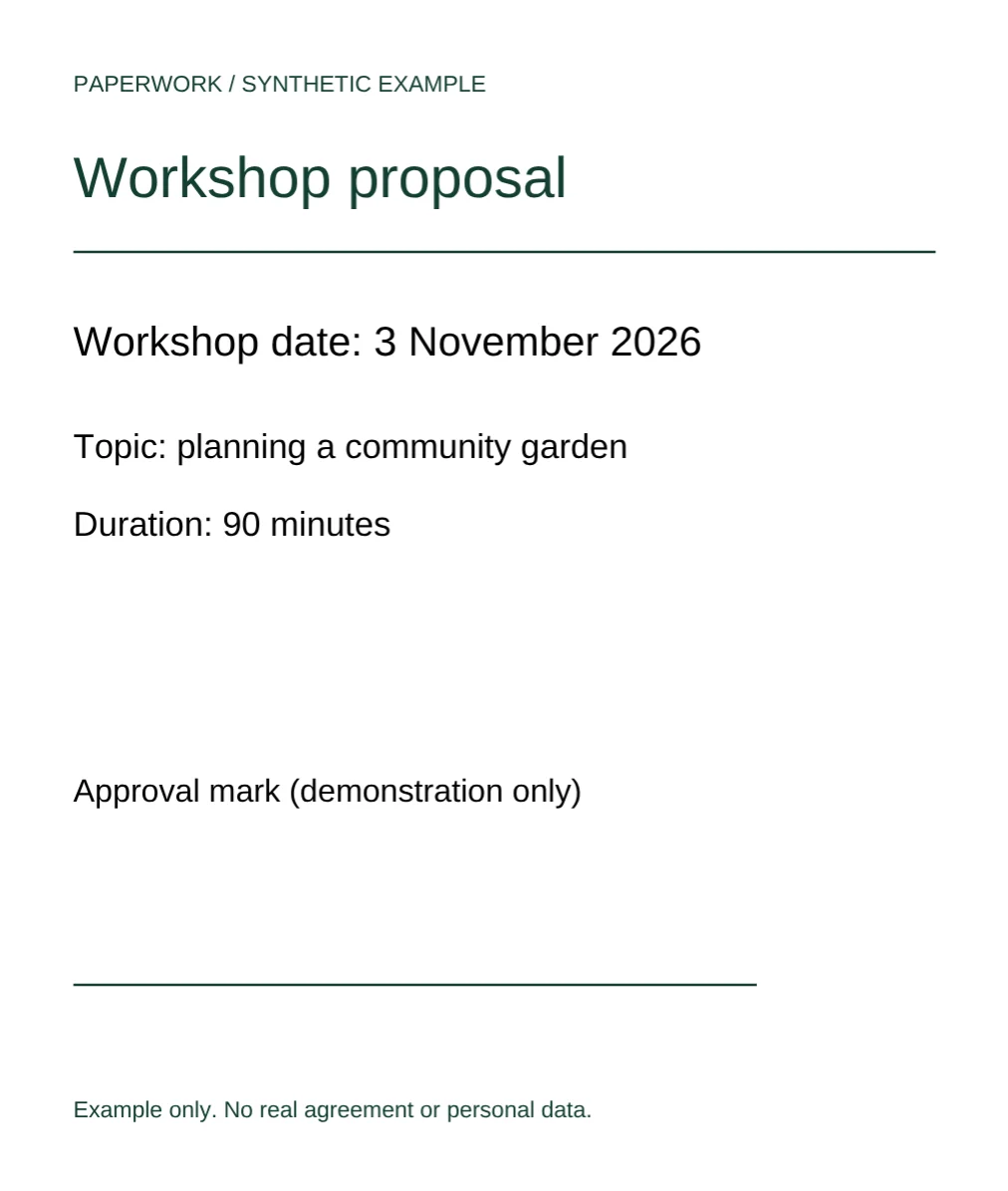
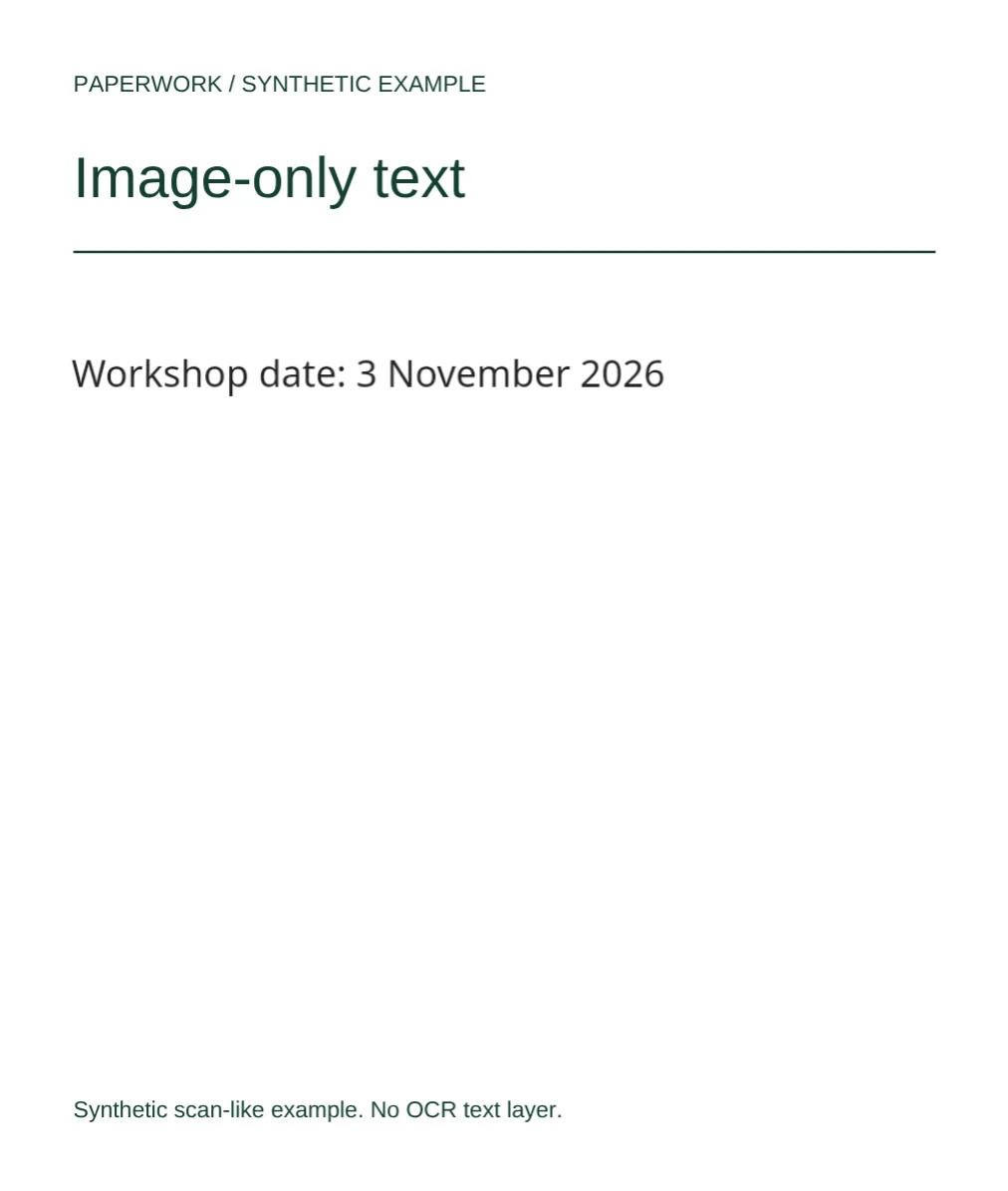
Select an image to view it at full size. Practice PDFs contain synthetic content only.
Visible words are not always editable text
A PDF describes a page’s appearance, not necessarily a word-processing document. A sentence may be stored as text with font information, as a photograph of a page, or as shapes tracing the letters. Those can look alike while requiring different editing methods.
Selecting a word in a PDF reader is a useful clue, not proof of editability. A scan may have an invisible OCR text layer for searching while the visible words are still pixels. Some genuine text is inside grouped graphics or uses other unsupported structures. Paperwork does not directly edit scanned images, outlined letters, invisible text, or text inside nested Form XObjects.
Diagnose the PDF before trying to replace words
- Keep the original. In a PDF reader, try selecting a single word and searching for a phrase. If neither works, the page may be an image or outlines. If selection works, it may still be an OCR layer or unsupported text.
- Open an unlocked copy up to 80 MB in Paperwork. Choose Edit text and click the visible block you need to change. If no editable block is available, do not assume Add text will replace the source words.
- If the block is supported, make a short correction and press Enter or Apply. Read any message about font substitution or unsupported characters, then inspect the line. Use Undo if the result is unsuitable.
- For a scan, use a separate OCR workflow or obtain the source document. Paperwork does not perform OCR. For substantial rewriting, tables, or paragraph layout changes, edit the original word-processing or design file and export a fresh PDF.
- After a supported edit, choose Download PDF and reopen the saved copy in a reader. Compare the corrected words, adjacent lines, font appearance, and existing form values with the original before sharing.
Compare original-text editing, overlays, OCR, and the source file
Edit text rewrites a supported original text block and suits small corrections. Add text creates a separate overlay and suits a note, date, or label. It does not remove or change the content underneath. A white cover is visual only, not secure redaction; do not use it to conceal sensitive information.
OCR recognizes characters in images. It can help make a scan searchable or support conversion in another tool, but recognized text needs proofreading, especially names, numbers, and tables. A searchable OCR layer alone does not guarantee that the visible page can be edited here.
The source document is usually the better choice for long replacements, new paragraphs, or precise layout changes. PDFs keep page positions rather than automatically flowing nearby paragraphs as you type. None of these workflows should be confused with secure removal of confidential content.
Why a selectable block can still reject a change
An embedded font may include only the characters used in the original PDF. Paperwork keeps original styling when possible, but new characters can require a reported substitution to Noto Sans. Here Noto Sans supports Latin, Greek, and Cyrillic; unsupported replacement characters leave the source unchanged.
Some clipped text cannot accept a replacement font without changing its appearance, so that edit is rejected. Longer text can crowd nearby content even when the replacement succeeds because surrounding paragraphs do not reflow. Use a shorter correction or the source document rather than repeatedly forcing the same edit.
Keep local processing and export limits in mind
PDF contents and filenames are read locally and are not uploaded. The site still loads assets and records separate anonymous usage telemetry. Local processing is about where the document is handled, not a promise that the website is offline.
Encrypted PDFs must be unlocked first. Existing form values and added edits are flattened in the download. The original file is not overwritten, but there is no cloud autosave: save and verify the copy before closing the tab. When using an external OCR or conversion service, check its own privacy and retention rules separately.