How to reduce a PDF’s size for email without guessing at quality
Open Compress, try Original quality or Balanced, and compare the actual output with your email limit. Download and inspect the PDF before sending; no setting guarantees a target size.
REAL CAPTURES · SYNTHETIC DOCUMENTS
Worked example: a smaller image-heavy handout
We compressed a synthetic raster illustration with Balanced, then downloaded and reopened the result. The dialog shows the measured sizes for this file only. Selectable text was preserved; the illustration loses detail. Compare the downloadable originals yourself rather than treating this as a typical savings claim.
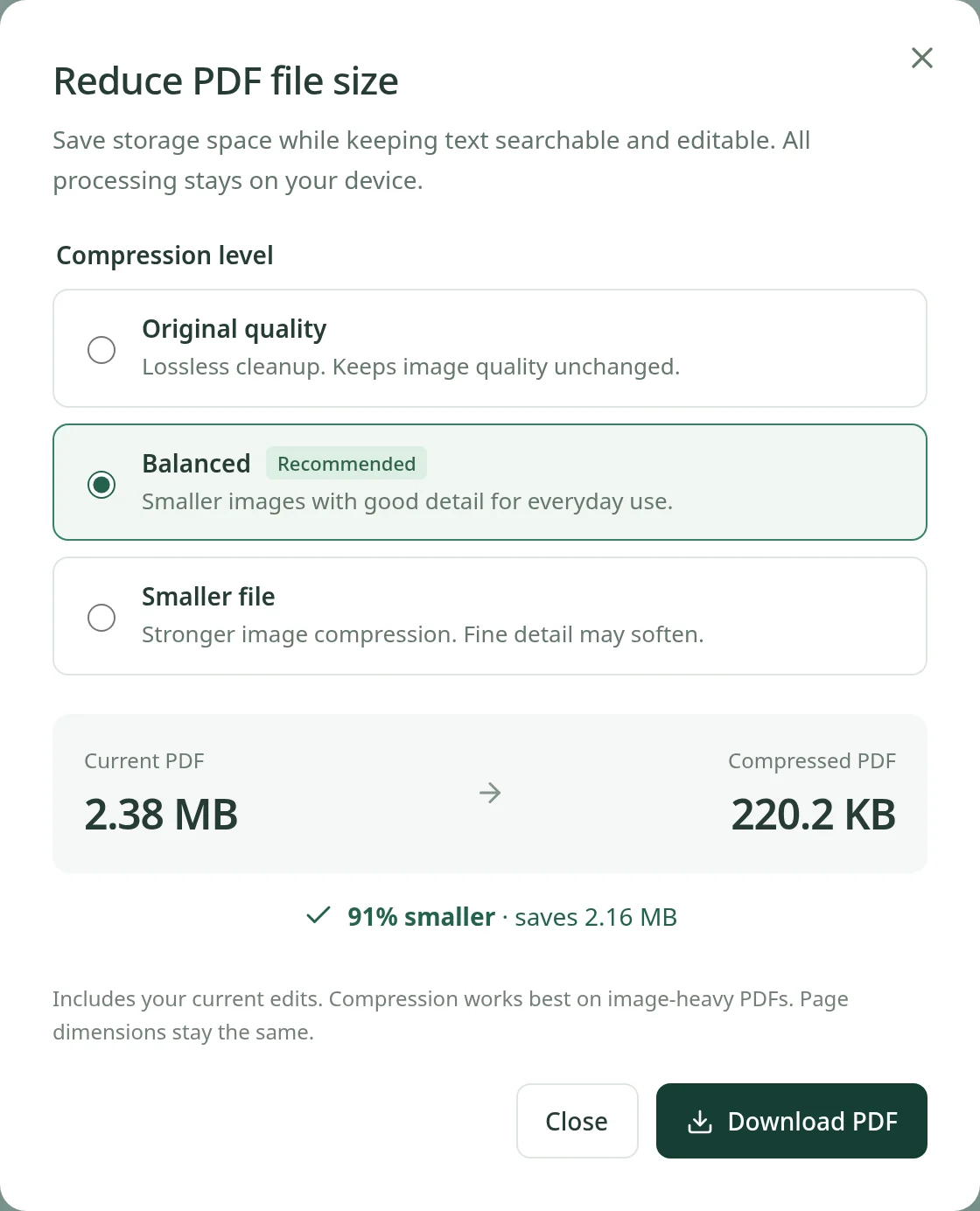
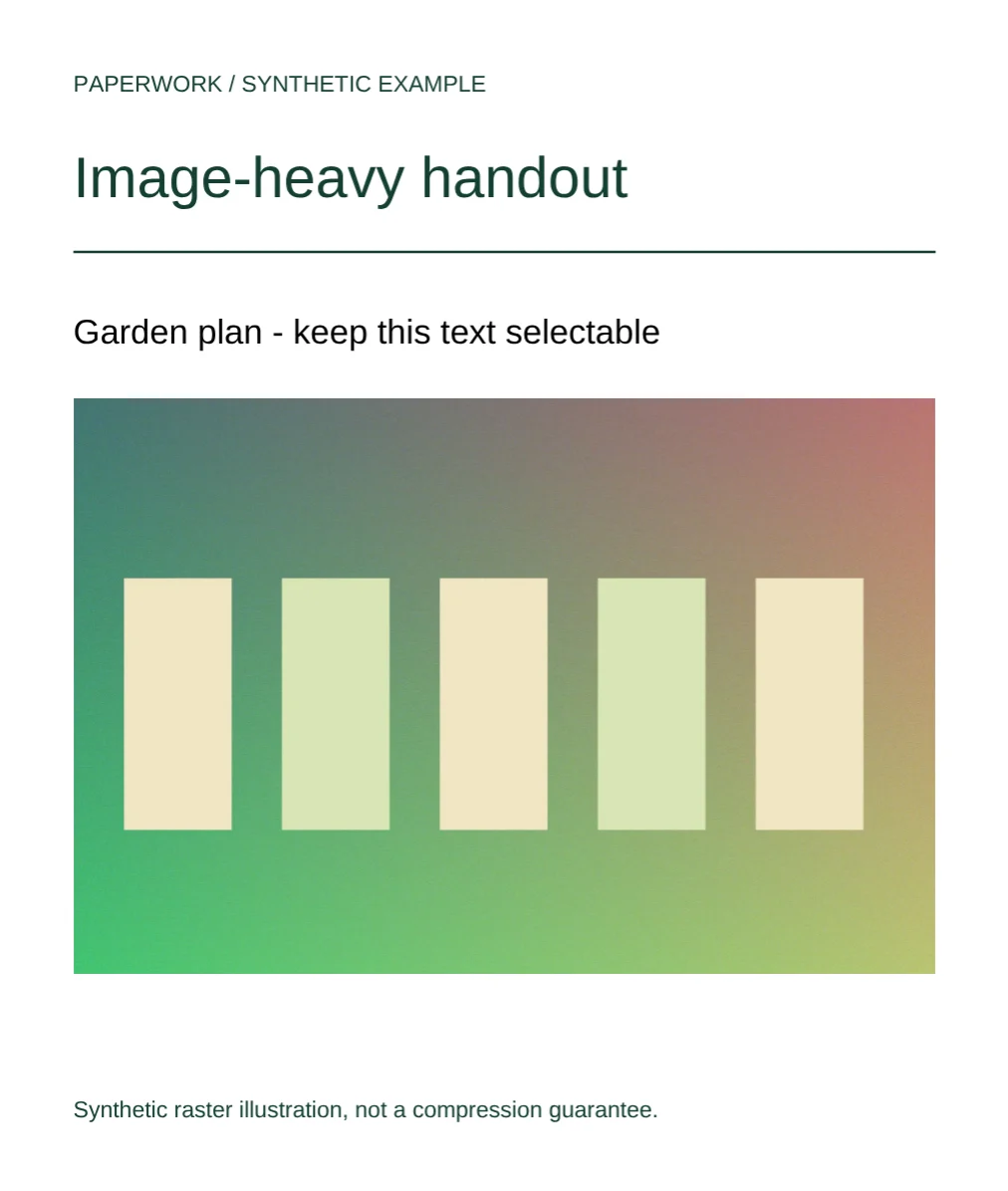
Select an image to view it at full size. Practice PDFs contain synthetic content only.
Start with the attachment limit, not a promised percentage
Check your email provider’s current attachment limit and, if possible, the recipient’s limit too. Limits can apply to the whole message, not just a single file. Email encoding can also make an attachment larger in transit. Leave room below the stated limit, especially when sending several files; a PDF that just fits on disk may still be rejected.
Look at the PDF’s current size and content. A photo-heavy report has different opportunities from a two-page text invoice. There is no reliable universal percentage reduction and Paperwork does not promise a specific target size. If a document is already compact, even successful compression may make little difference.
Pick the least aggressive setting that does the job
Open an unlocked PDF in Paperwork, then choose Compress. Inputs can be up to 80 MB. The work runs locally in a cancellable browser worker; PDF contents and filenames are not uploaded. Start with Original quality if preserving every image detail matters. This performs lossless cleanup, repacking streams and removing unreachable objects without deliberately reducing image quality.
Try Balanced if lossless cleanup is not enough. Balanced downsamples ordinary RGB or grayscale images to at most 2000 pixels on the longer edge and recompresses them as JPEG. Smaller file uses a 1200-pixel limit and is more aggressive. These settings can reduce image detail, particularly in small labels, charts saved as images, or photographs you intend to print.
Not every image is eligible: transparent, masked, specialized-color, and oversized images are retained. That is one reason a visually image-heavy PDF may shrink less than expected. Original vector text remains selectable and editable, and page dimensions stay unchanged.
Use a compare, download, and inspect loop
- Read the actual original and output sizes shown in the compression dialog, along with the percentage saved. Compare the output with the space available in your email, not with an illustrative example on a website.
- Download the result and open the saved file. Check the smallest text, image-based labels, diagrams, and photos at a useful zoom. If the document will be printed, check a representative page at the intended print size.
- If detail is too soft, reopen your original and try a less aggressive setting. Avoid repeatedly recompressing an already lossy copy; starting from the original gives you a clearer comparison.
- Confirm page count and order, then attach the checked copy. Give it a filename that distinguishes it from the original so you do not accidentally send the larger version.
Know what “not larger” actually means
Compression never returns a larger file than the input used for that download. This is not a promise that a file with added images or other edits will be smaller than the untouched PDF you first opened. When no page or annotation edits are pending, compression preserves the original document structure. If you have made edits, also check the exported document’s appearance and any flattened form values.
Already efficient text-only documents may not shrink at all. A larger savings number is not automatically a better result: a readable 4 MB document is more useful than an illegible 2 MB one. Keep the original until the recipient has the version they need.
If it still will not fit
Remove unnecessary pages with the page controls if the recipient genuinely does not need them, then save and check the result. For more substantial reductions, return to the source document and export a screen-oriented PDF with appropriately sized images. Do not remove required information simply to satisfy a size limit.
If the full document must stay intact, use an approved file-sharing method instead of an attachment, following your organization’s privacy requirements. Paperwork does not host your PDF or create a sharing link. Download your work before closing the tab, and remember that encrypted PDFs need to be unlocked before this workflow can begin.