How to change selectable PDF text without uploading your document
Open your PDF, choose Edit text, click a supported text block, and apply a short correction. Download and reopen the copy to check spacing and fonts; scans need OCR or the source file.
REAL CAPTURES · SYNTHETIC DOCUMENTS
Worked example: correct a workshop date
In this synthetic proposal, we changed 3 November to 10 November using Edit text, downloaded the PDF, and reopened that download. These are captures of the actual input and saved result, not a mockup. The surrounding text stays in place.
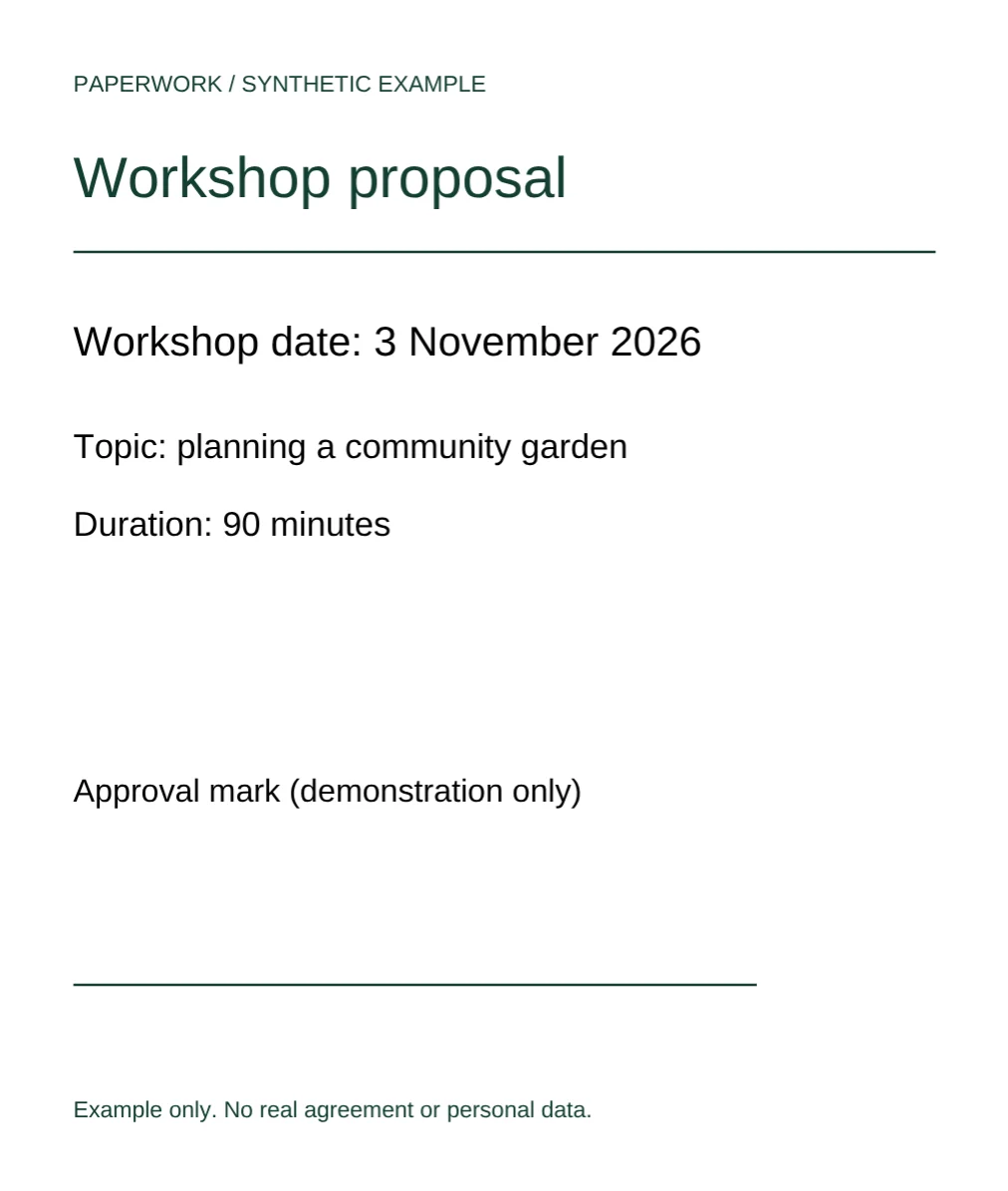
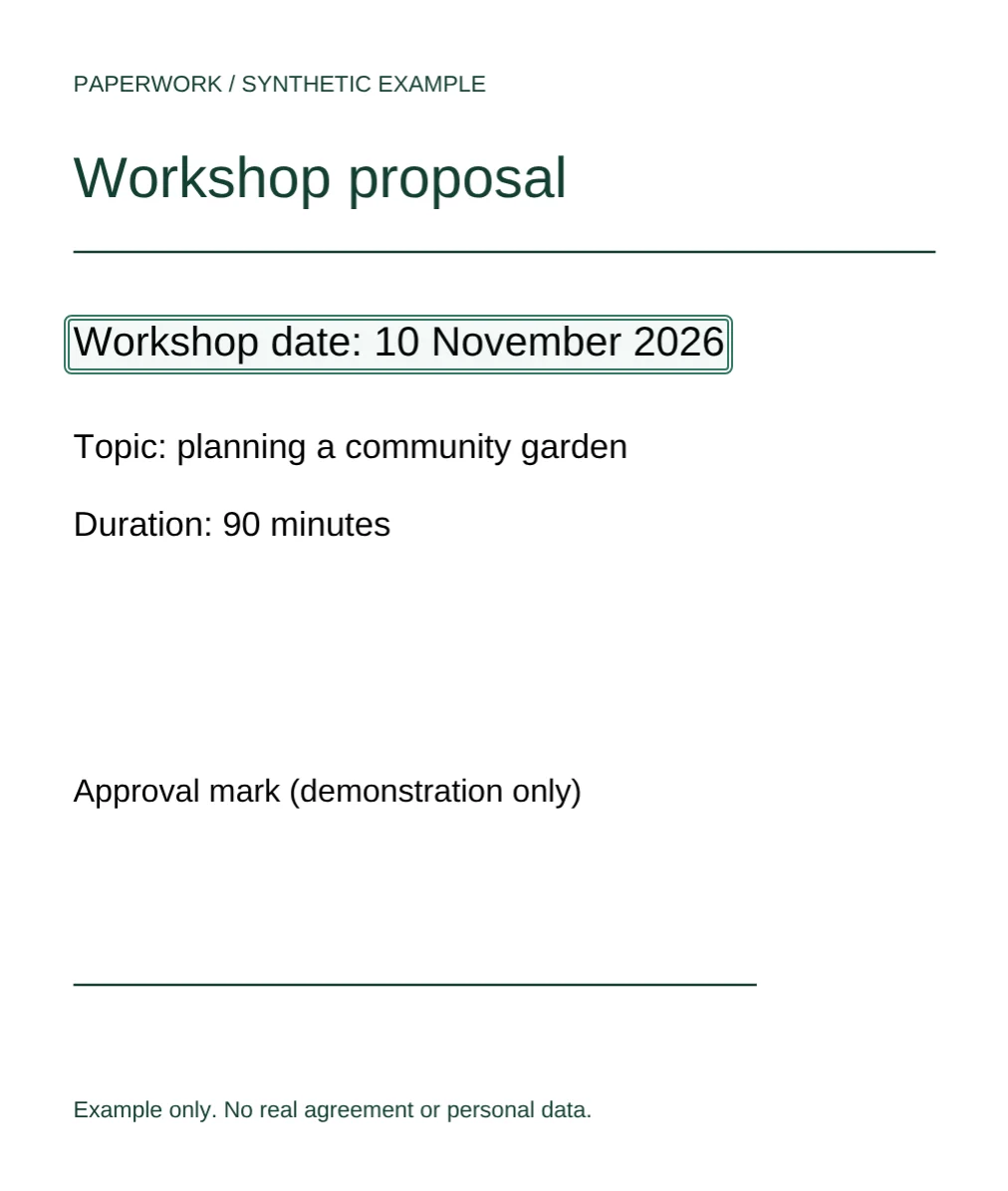
Select an image to view it at full size. Practice PDFs contain synthetic content only.
First, work out what kind of text you have
Try selecting a word in your usual PDF reader. If individual words can be selected, the document may contain real text. If the whole page behaves like a picture, it may be a scan. Selection is a useful first check, not a guarantee that every block is editable: PDFs can group text inside graphics or store letters as outlines.
Paperwork rewrites supported selectable page text using a browser worker. It does not recognize letters in scanned images, and it does not perform OCR. Outlined text, invisible text, and text inside nested Form XObjects (grouped graphics) are not directly editable. If a block is not available, use the original source document when you have it instead of trying to force a PDF edit.
Make a small, controlled edit
- Keep the original PDF as a reference. Open an unlocked copy in Paperwork; inputs can be up to 80 MB. PDF contents and filenames are read locally in browser memory, not uploaded.
- Choose Edit text, then click the block containing the word you need to change. Replace the word, insert new text, or clear the block to delete it. Press Enter or Apply to commit; Escape cancels an uncommitted change.
- Check the whole line immediately. Text remains at its original position and surrounding paragraphs do not reflow. A much longer name or sentence can crowd neighboring content. Prefer a short correction, or return to the source file for a layout change.
- Use Undo if the result is not what you intended. Finish one block before moving on to another so it is easy to spot an accidental change.
Understand font changes before you send the file
PDFs often contain only a subset of a font: the characters used when the PDF was created. A newly typed letter may not exist in that subset. Paperwork retains original font, size, color, and position when possible; when the subset lacks needed characters, it substitutes a full Noto Sans font and reports the change. A visually similar replacement is not an exact match.
Noto Sans supports Latin, Greek, and Cyrillic text here. Unsupported replacement characters leave the source unchanged, and unsupported characters in added text can produce an export error. Some clipped text cannot accept a replacement font without changing its appearance, so that edit is rejected. Check both the message and the rendered result rather than assuming a keystroke has succeeded.
Do not confuse replacement, overlays, and removal of sensitive information
Edit text changes supported original text. Add text creates an overlay, which is useful for a note or a date but does not remove what is beneath it. A white cover only hides content visually; the original content remains in the PDF. Do not use a cover to conceal private information. Paperwork does not provide secure redaction.
For documents with form fields, existing form values are flattened in the downloaded copy. If the recipient needs an interactive form, this export may not fit their workflow. Encrypted documents must be unlocked first. A drawn signature is only a drawn mark, not a certificate signature.
Save and verify outside the editing tab
Choose Download PDF before closing the tab. Your original input is not overwritten, and there is no cloud autosave. Open the downloaded copy in a PDF reader, find the corrected phrase, and check adjacent lines, page breaks, and any form values. For an important name, number, or date, compare it directly with the original reference.
Local processing means the document stays on your device; it does not mean the website makes no network requests. The app loads its assets and records separate anonymous usage counts, without PDF contents or filenames. Use a device you trust and take care where you save and send the finished copy.