How to merge PDFs into one file and check the page order
Open the first PDF, use Add PDF pages to append the others, then move pages into order. Download one combined copy and reopen it to check page count, orientation, and form values.
REAL CAPTURES · SYNTHETIC DOCUMENTS
Worked example: brief first, checklist second
We opened a one-page synthetic workshop brief, used Add PDF pages to append the one-page materials checklist, and downloaded one two-page PDF. The saved copy was reopened and both page titles checked in order.
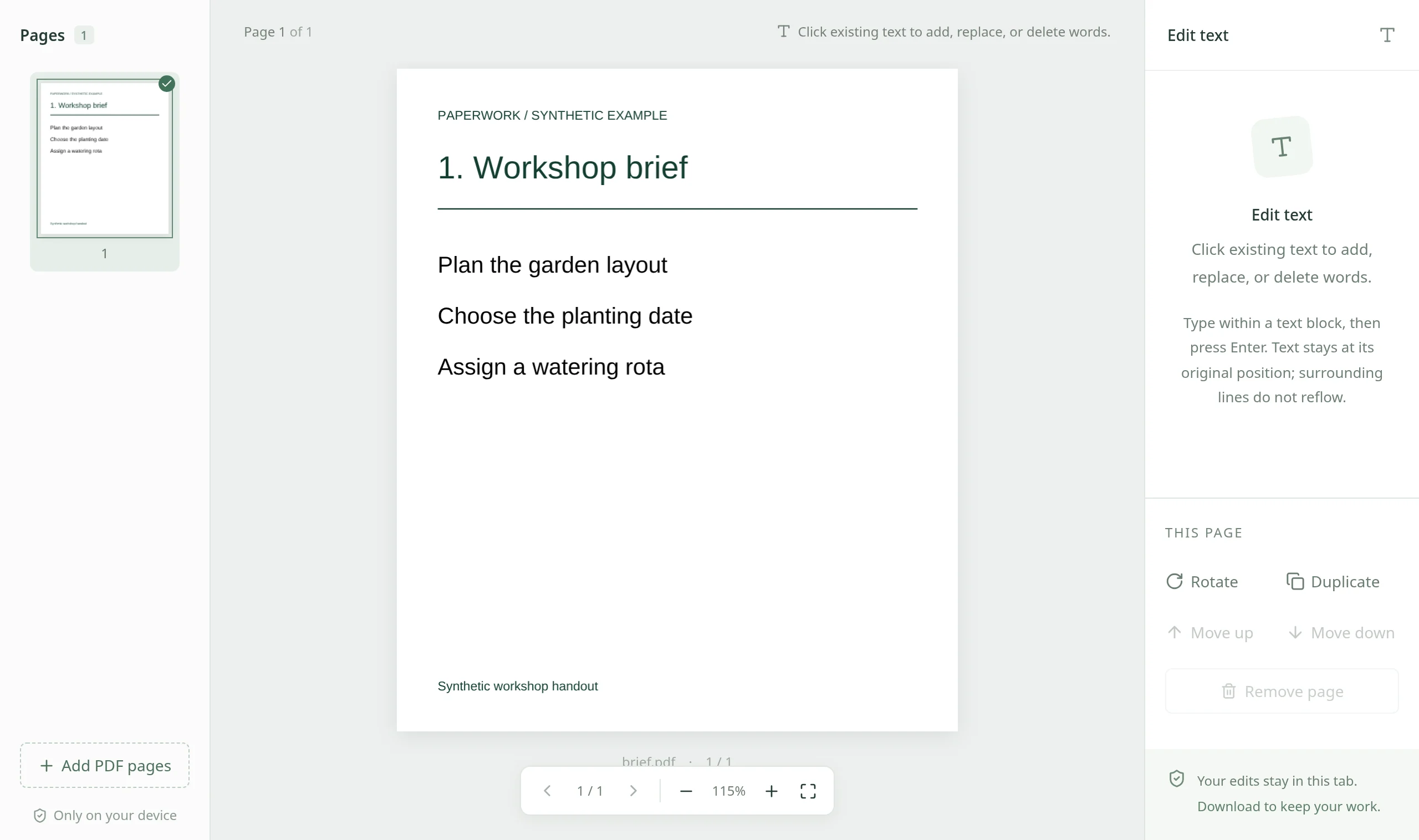
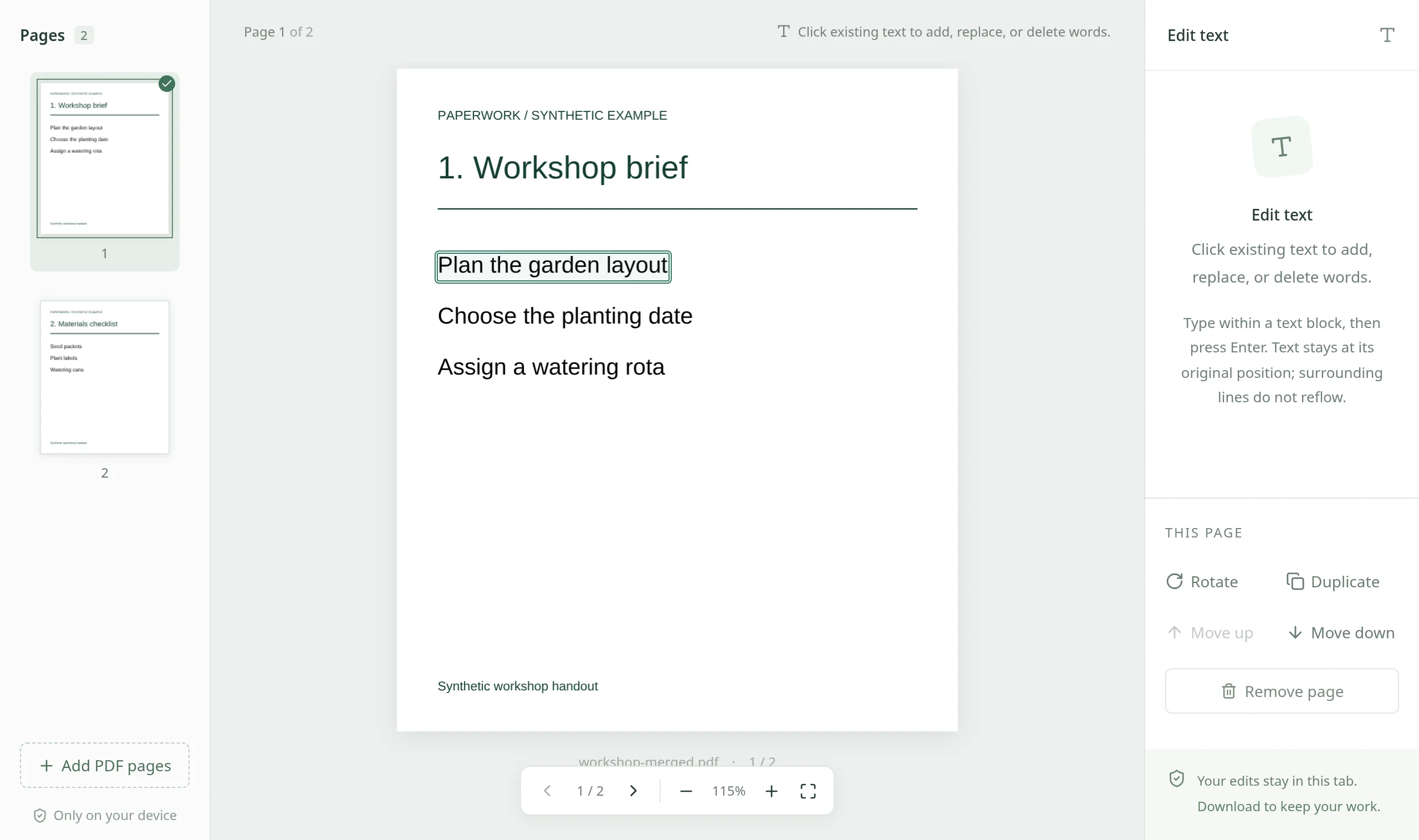
Select an image to view it at full size. Practice PDFs contain synthetic content only.
Prepare the files in the order you need
Merging combines pages into one PDF; it does not turn separate documents into one continuously reflowing layout. Decide which document comes first and whether you need every page. For example, a proposal followed by an appendix should keep the proposal’s final page next to the appendix’s first page.
Keep the originals as references. Each input can be up to 80 MB and must be unlocked before opening. Large collections can still exhaust browser memory even when each file is within the limit. Start with the required documents rather than adding everything and sorting it later.
Merge PDFs step by step in Paperwork
- Open the PDF that should appear first. Review its page count and thumbnails before adding anything else.
- Choose Add PDF pages in the page sidebar and select the next PDF. Its pages are appended after the current pages. Repeat for each remaining document; adding one file at a time makes the intended order easier to track.
- Select a page thumbnail and use Move up or Move down to put it in the right position. Check the actual page content as well as its thumbnail: printed page numbers may restart in each source file.
- Use Rotate for a sideways page or Remove page for an unwanted duplicate. At least one page must remain. Use Undo if you remove the wrong page while working.
- Review each join between documents, then choose Download PDF. Give the saved copy a recognizable name so it is not confused with one of the originals.
Reopen the merged PDF before sending it
Open the downloaded file in a PDF reader outside the editing tab. Compare its page count with the source totals, allowing for any intentional removals or duplicates. Check the first and last pages, every boundary between source documents, and any pages you moved or rotated.
Look for clipped content, unexpected blank pages, and missing or changed form values. Do not rely on the filename or a successful download alone. If something is wrong, correct the working document and download again; keep the originals until the final copy has been checked.
What merging preserves, and when to use another workflow
The export retains original vector page content, but existing form values and added edits are flattened. If someone must continue filling interactive fields, keep the source PDFs and use a workflow designed for interactive forms. This is page assembly, not a signing request or document-review system.
Merging is not compression and does not promise a smaller attachment. If the combined file is too large, compare compression settings and inspect the result, or use an approved file-sharing method. If you need new page numbering or major layout changes, editing the source documents before exporting may be clearer than assembling finished PDFs.
Local files still need a saved copy
PDF contents and filenames are processed locally in browser memory and are not uploaded. The website still loads assets and sends separate anonymous usage telemetry; local document processing does not mean zero network requests.
There is no cloud autosave or hosted sharing link. Download before closing the tab, and save the combined PDF somewhere appropriate for its contents. Merging does not overwrite the original files on your device.