How to sign a PDF without printing or scanning
Choose Sign and draw directly on the PDF, then download and reopen the copy to check the mark. This adds a visible drawn signature, not a digital certificate or verified signing record.
REAL CAPTURES · SYNTHETIC DOCUMENTS
Worked example: add a demonstration mark
We drew a synthetic mark above the approval line, downloaded the proposal, and reopened the saved PDF to check placement. This is not a real person’s signature or agreement, and the visible mark does not verify identity or create a digital certificate.

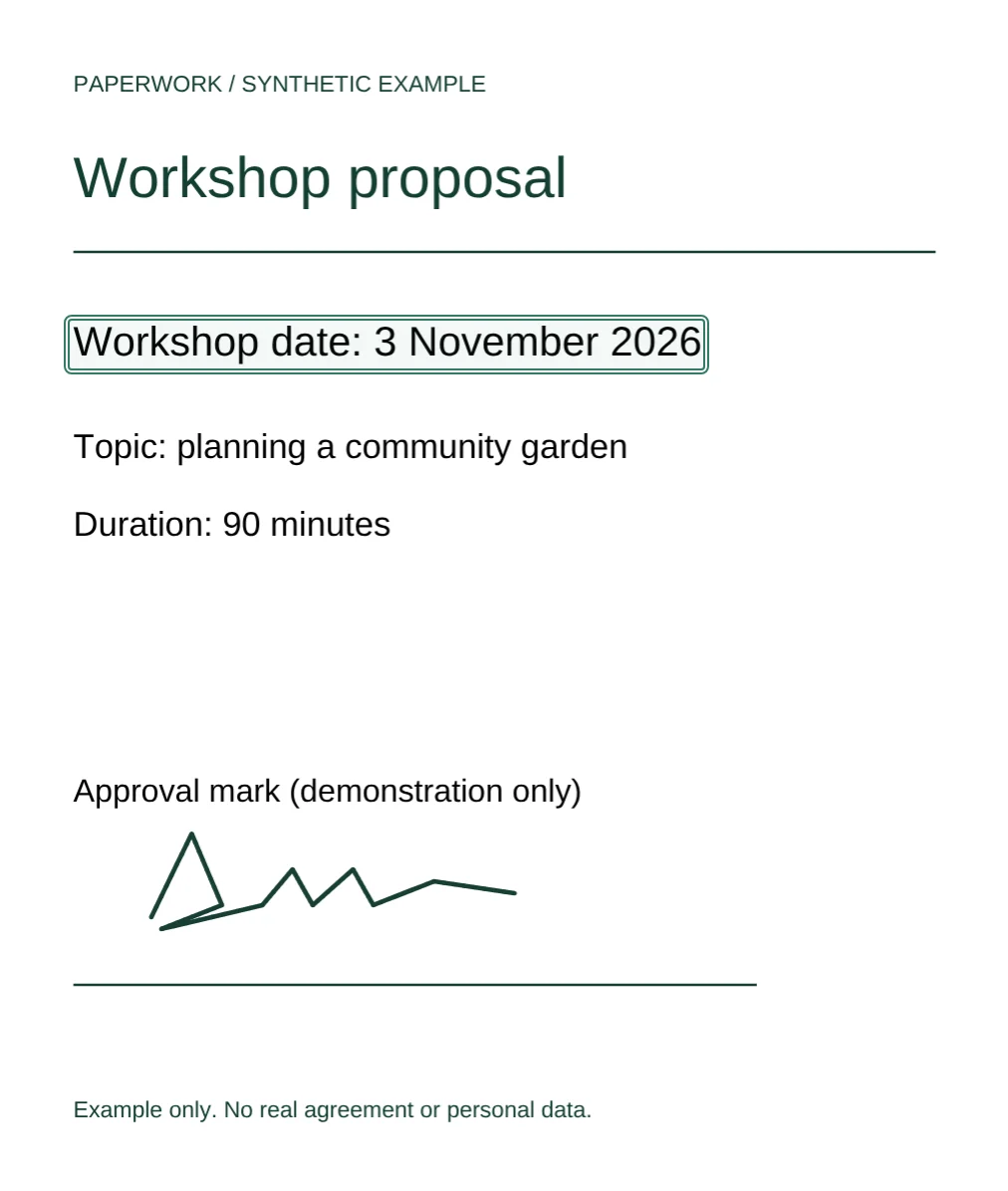
Select an image to view it at full size. Practice PDFs contain synthetic content only.
Check whether a drawn signature is enough
Ask the recipient what kind of signature they accept before editing. A drawn mark may suit their process, but it does not by itself guarantee legal validity or acceptance. If they require a certificate, identity checks, or a signing service, follow that process instead.
Paperwork draws visible strokes on a page. It does not provide a certificate-based digital signature, identity verification, a verified timestamp, a signing request workflow, or an audit trail. A certificate-based signing workflow is a different tool, not another appearance setting for the drawn mark.
Draw your signature on the PDF step by step
- Keep the original and open an unlocked PDF up to 80 MB. Read the document and use the thumbnails to find the correct signature line; check for additional places that need a date or initials.
- Choose Sign. Set the stroke color and width, then draw directly on the page with your mouse or finger. Zoom to a comfortable view if the signature line is small.
- Use Undo to retry a stroke. Use Select to move an added stroke if it is misplaced. A signature made with several strokes has separate marks, so check every part rather than assuming the whole signature moves together.
- If the recipient needs a date or printed name, choose Add text, click the page, and enter it. This is a text overlay, not a verified timestamp or an edit to the original words.
- Review every required signing location, then choose Download PDF. Save a clearly named copy before leaving the tab.
Reopen the signed copy and check what the recipient will see
Open the saved PDF in a reader outside the editor. Confirm that the signature is on the correct page and line, remains legible at a normal reading size, and does not cover nearby terms. Check every stroke, date, printed name, and any existing form values.
Confirm the page count and that you are sending the checked copy rather than the unsigned original. A visible signature in the downloaded PDF is only a placement check; it is not evidence that identity was verified or that the recipient’s signing requirements have been met.
Understand flattened edits and keep the original
Added marks and existing form values are flattened in the exported copy. Do not expect to reopen the download with the same independently movable signature strokes or interactive form fields. Keep the original if you may need another attempt or a different signing process.
Unlock encrypted PDFs before using this workflow. If the document needs certificate-based signing or verification of an existing certificate signature, use a dedicated signing and verification workflow rather than relying on this drawn-signature editor.
Save and send the signature with care
PDF contents and filenames stay in browser memory and are not uploaded. Anonymous usage telemetry is separate from the document, and the website makes network requests to load its assets. Use a trusted device and consider who can access the downloaded copy.
No account is needed, but there is no cloud autosave or hosted delivery service. Download before closing the tab, then send the checked PDF using the recipient’s requested channel. The original on your device is not overwritten.