How to rotate, reorder, and remove PDF pages before sharing
Select a page thumbnail, use Rotate or Move up and Move down, and remove only pages you do not need. Download a new copy and reopen it to check every page’s orientation and order.
REAL CAPTURES · SYNTHETIC DOCUMENTS
Worked example: put a workshop handout in order
The synthetic input has a sideways checklist first, the brief second, and an extra checklist third. We rotated the first page upright, moved it below the brief, and removed the extra copy. The downloaded PDF was reopened and checked: two upright pages, brief first and checklist second.
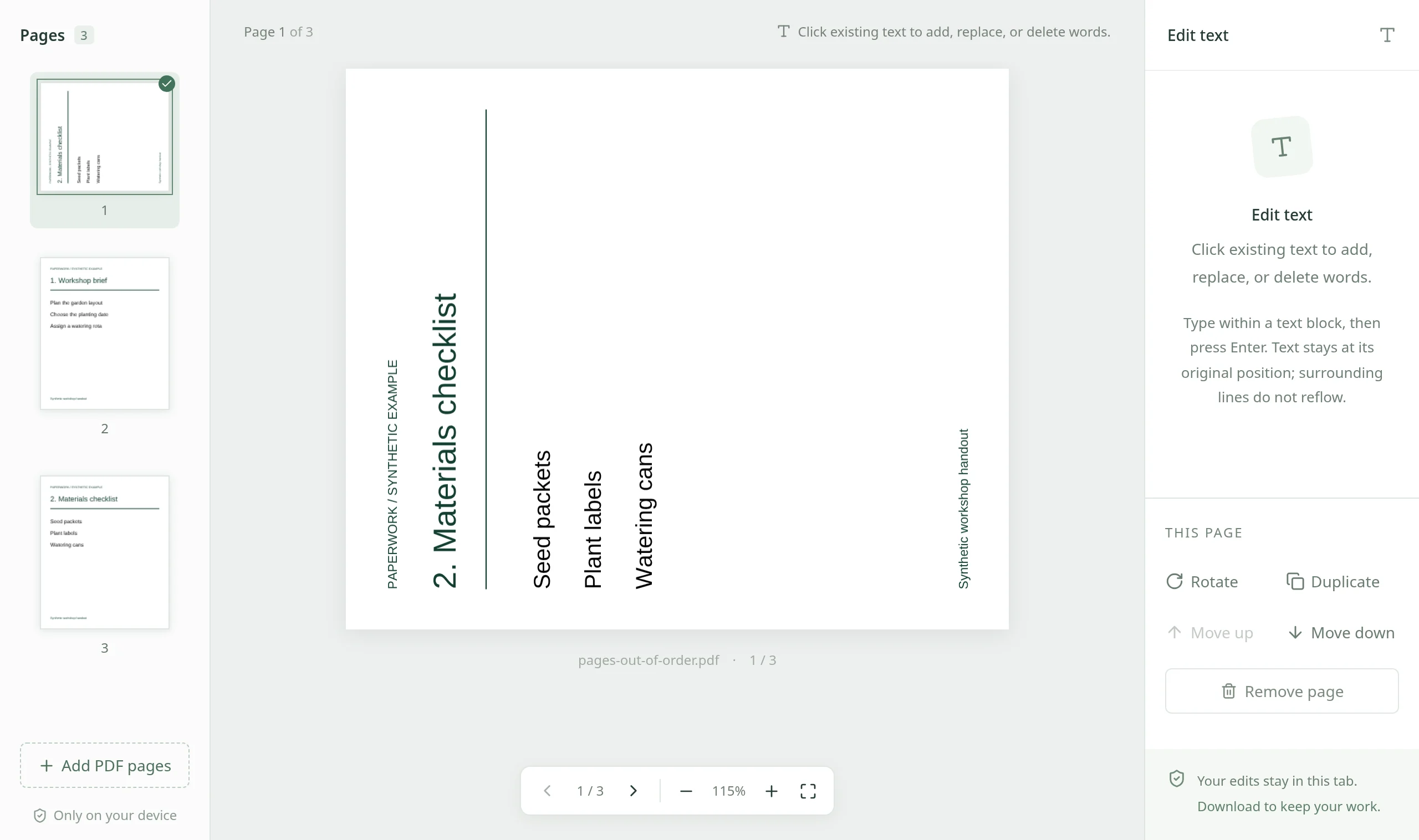
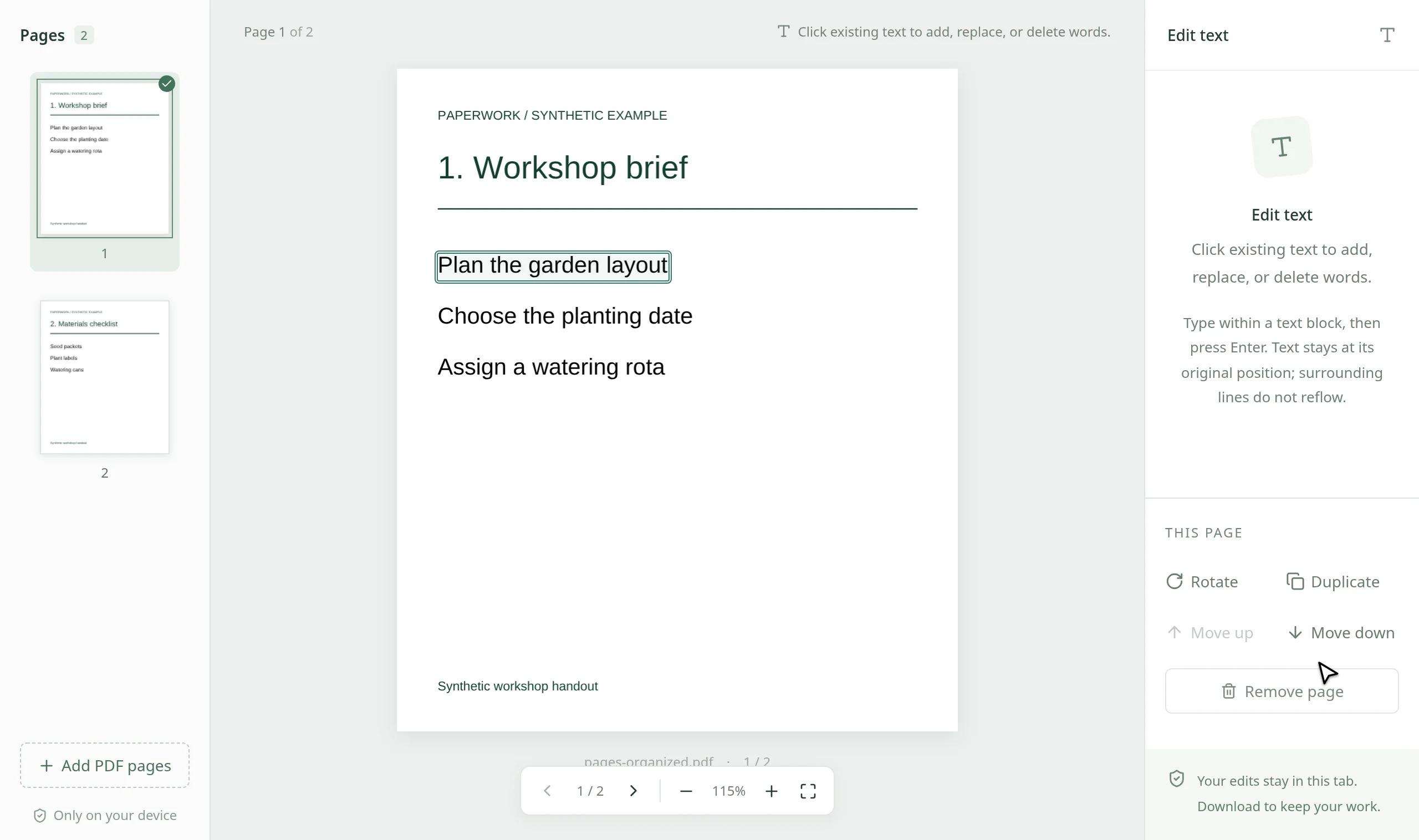
Select an image to view it at full size. Practice PDFs contain synthetic content only.
Decide what the finished document should contain
Keep the original PDF and write down the intended order before removing anything. Thumbnails show file positions, which may differ from page numbers printed on a document. Check titles and content, especially where several documents restart their page numbering.
Open an unlocked PDF up to 80 MB. PDF contents and filenames are processed locally in browser memory and are not uploaded. The site still loads its assets and sends separate anonymous usage telemetry.
Rotate a sideways page without changing the others
- Select the affected page in the thumbnail sidebar. On a narrow screen, use Show pages to open the sidebar first.
- Choose Rotate in the page controls. Each click turns the selected page 90 degrees clockwise; repeat until its text reads upright. This changes the page orientation, not individual pictures inside it.
- Look at the full page, not just the thumbnail. Confirm the top of the document and check for content at the edges. Undo reverses a mistaken rotation while you work.
Reorder pages and remove an unwanted duplicate
- Select the page you want to move. Choose Move up or Move down until it reaches the intended position. The selected page moves with its content; printed page numbers do not update automatically.
- If a required page is in another PDF, use Add PDF pages to append that file, then move its pages into place. Adding a PDF is not the same as uploading it to a server.
- Select an unwanted page and inspect it before choosing Remove page. At least one page must remain. Removing a page does not securely redact sensitive content elsewhere in the PDF.
- Use Undo immediately if you remove the wrong page. Do not assume that reopening a downloaded copy restores removed pages or the earlier undo history.
Download, reopen, and verify the finished order
Choose Download PDF and save a new copy. Open the saved file in a PDF reader outside the editing tab. Check the total page count, every changed page, and the boundaries between documents. In the example above, three input pages become two: Workshop brief, then Materials checklist.
Confirm all text is upright and no required content was removed. Existing form values and added edits are flattened in the exported copy; use another workflow if the recipient needs interactive fields or certificate-based signature validation. Keep the original until the finished copy has been checked.
There is no cloud autosave or hosted sharing link. Download before closing the tab, then send the checked copy through an appropriate channel. Reordering alone does not promise a smaller file; compare compression separately if an attachment is too large.